How DNS Works: A Simple Guide
I’m a senior full-stack developer working across system design, DevOps, and AI. I build scalable systems, optimize performance, and explore emerging tech. I’ve written “Machine Learning in iOS” and am now writing a new book on system design, DevOps, and ML. This blog is where I share what I learn, build, and discover.
So What is a DNS resolver?
What is a DNS resolver? How does a URL work using DNS? How are requests and responses processed?
let’s break this down super simply so even a complete beginner can visualize what’s happening when they type a URL like www.example.com in their browser.
We’ll use real-world analogies (like phone directories and delivery systems) so it’s easy to relate to.
---
🧠 Step 1: What Is a DNS Resolver?
Think of the internet as a giant city, and every website (like www.example.com) is a house in that city.
But here’s the thing — houses don’t have names, they have addresses (IP addresses) like “93.184.216.34.”
Now, you don’t want to remember all those numbers, right?
That’s where DNS (Domain Name System) comes in — it’s like the phonebook of the internet.
And the DNS resolver is the person (or assistant) who looks up that phonebook for you.
When you say, “Take me to www.example.com,” the resolver finds the matching address (IP) so your browser knows exactly where to go.
Example analogy:
\> Imagine you want to visit your friend’s home, but you only know their name — not the address.
So you ask your smart assistant (like Siri or Google Assistant) to look it up for you.
That assistant → is your DNS resolver.
---
🌐 Step 2: How a URL Works Using DNS
When you type a URL (like https://www.example.com) into your browser, your computer starts a small detective mission to find where that site actually lives.
Let’s go through that journey step by step 👇
---
1. Browser Cache Check 🧭
Your browser first checks — “Hey, do I already know this address from before?”
If yes, it skips the whole search and goes straight there.
Analogy:
You already remember your friend’s home address because you visited recently. No need to check Google Maps again.
---
2. OS and Resolver Check 🧩
If your browser doesn’t know, it asks your computer’s operating system, which then asks your DNS resolver (usually your ISP or a public one like Google DNS 8.8.8.8).
Analogy:
If you don’t remember your friend’s address, you ask your roommate (the OS).
If they don’t know either, they call the directory service (the resolver) to look it up for you.
---
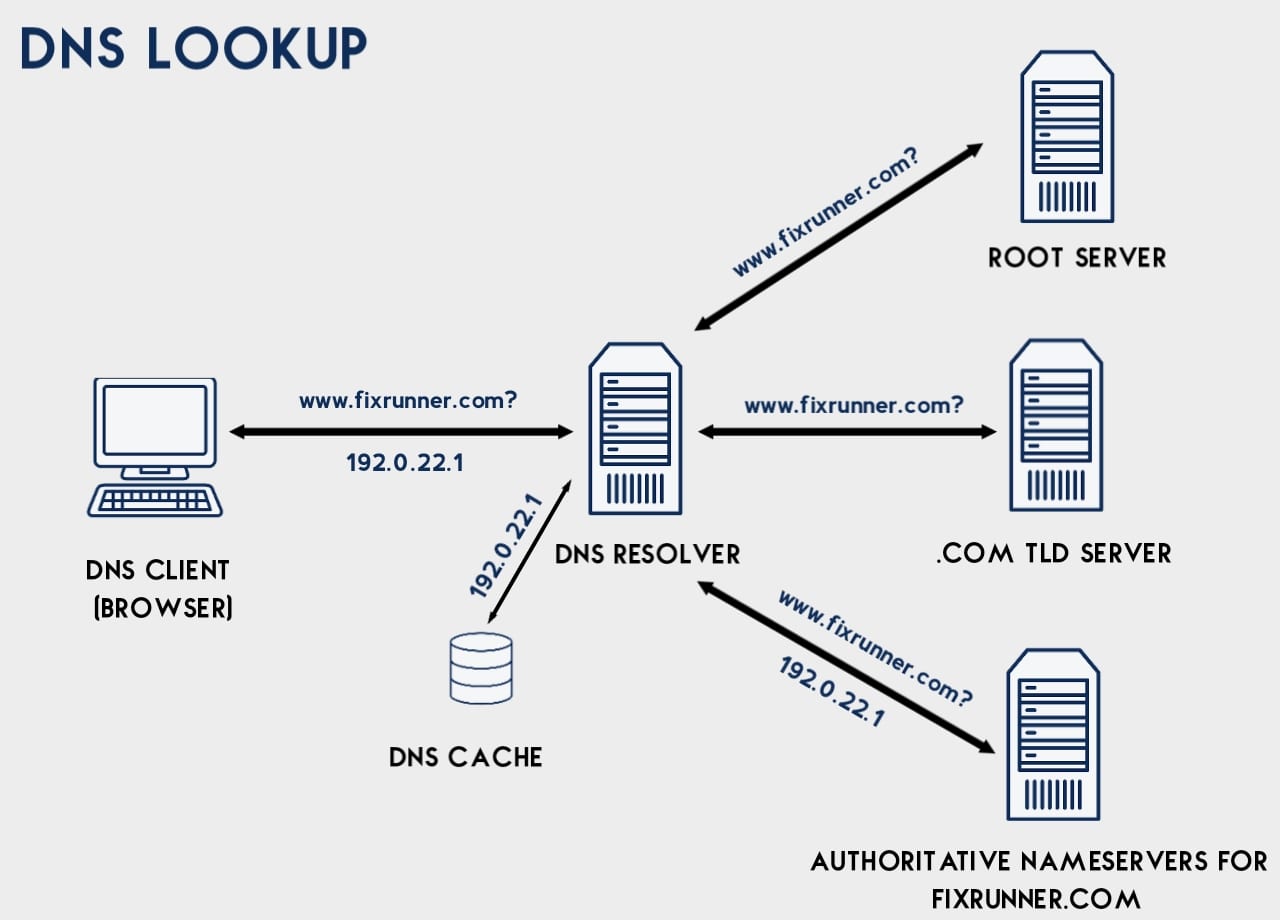
3. Recursive Resolution 🔍
This is where the resolver goes on a mini adventure through different layers of the internet’s “address system” to find the exact house (IP).
Here’s how:
1. Root DNS server — like the “main office” that knows where all .com, .net, .org directories are.
2. TLD server (.com) — like the “.com neighborhood directory.”
3. Authoritative DNS server (example.com) — the final authority that says,
“Yes, www.example.com lives at 93.184.216.34.”
Analogy:
It’s like finding someone’s home address:
First, you check which city they live in (Root server).
Then which street or colony (.com server).
Finally, the house number (authoritative server).
After all this, the resolver gets the address and gives it back to your computer.
---
4. Caching and Return 🏦
Now that the resolver has found the IP, it remembers (caches) it for some time — so if you visit again, it can skip the whole detective work.
Analogy:
You save your friend’s address in your phone’s contacts so you don’t have to search next time.
---
⚙️ Step 3: How Requests and Responses Work
Now your browser knows the exact address (IP) of the website.
It’s time to actually visit that website!
---
1. DNS Complete → TCP Connection
The browser “dials” the IP address and opens a line of communication — like calling your friend’s number.
For websites:
Port 80 = for normal websites (HTTP)
Port 443 = for secure websites (HTTPS)
Analogy:
You’ve got the address — now you’re knocking on the door (opening a connection).
---
2. HTTP Request Sent 📨
The browser now sends a message that says:
\> “Hey www.example.com, I’d like to see your homepage.”
This includes:
The page path (/)
Some headers (info about your browser, device, etc.)
Maybe cookies or login info
Analogy:
It’s like telling the waiter at a restaurant what dish you want.
---
3. Server Response 🍽️
The website’s server receives your request, processes it, and sends back:
A status code (e.g., 200 OK — all good, or 404 Not Found — oops, missing)
Headers (extra info)
The actual content (HTML, CSS, JS, images, etc.)
Analogy:
The waiter brings back your food (the web page) along with the bill and extras like sauces (headers, data).
---
4. Browser Renders the Page 🎨
Finally, your browser:
Reads the HTML
Loads linked files (CSS, JavaScript)
Displays the content beautifully on your screen
Analogy:
You plate the food, garnish it, and it’s ready to eat — just like how your browser “serves” the final website to you.
---
🧩 Summary in Simple Terms
Step What Happens Analogy
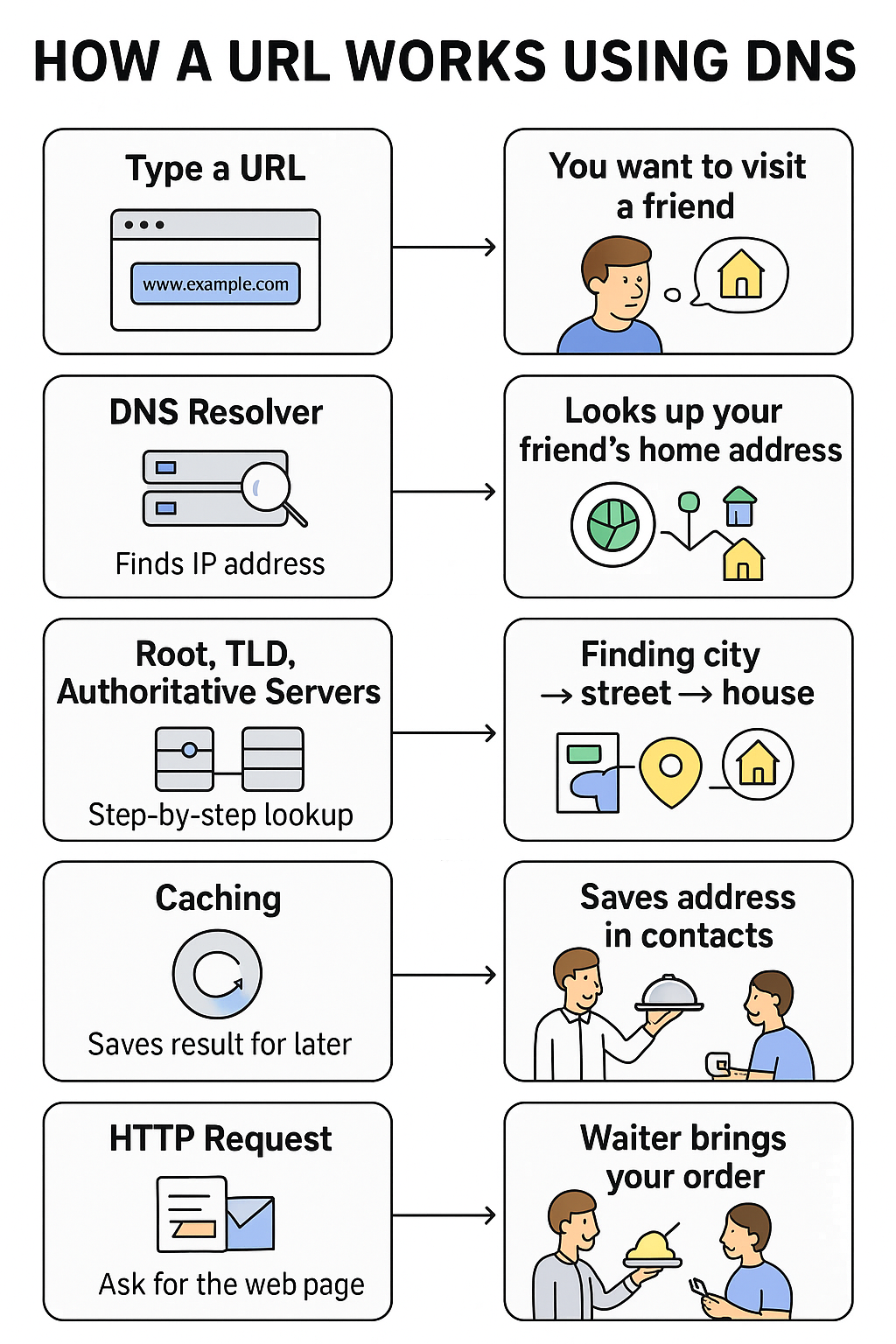
Type a URL You want to visit a site You want to visit a friend
DNS Resolver Finds IP address Looks up your friend’s home address
Root, TLD, Authoritative Servers Step-by-step lookup Finding city → street → house
Caching Saves result for later Saves address in contacts
HTTP Request Ask for the web page Order food from waiter
Server Response Sends content Waiter brings your order
Browser Rendering Shows the page You eat the meal.